



Westlaw login help: sign-in paths and quick solutions
General how-to for readers who use Westlaw for legal research. Virginia Family Law is not affiliated with Thomson Reuters and cannot reset accounts or restore subscriptions. For account-specific problems, use official Thomson Reuters support or your organization’s administrator.
If you need Westlaw login help, begin with the official sign-in page and confirm that you’re using the correct route for your account — whether that means standard Westlaw access, Westlaw Edge, Westlaw Precision, or an organization-specific portal from Thomson Reuters. Many sign-in issues trace back to a simple mismatch: the wrong link, a saved username or password that no longer aligns with your profile, a browser session that needs a quick reset, or a login-required prompt connected to your institution, law firm network, or law school access setup.
This guide points you to the right Westlaw login path and walks through practical fixes when access fails — useful for law students, legal professionals, and anyone comparing Lexis and Westlaw access routes so research tools and privacy settings open instead of looping on authentication.
Official link only
Use Thomson Reuters or your institution’s Westlaw URL — not a random search result.
Route depends on account
Standard Westlaw, Edge, Precision, SSO, and OnePass may each use a different door.
Most failures are local
Expired passwords, autofill, cookies, and stale sessions cause most lockouts.
Escalate with proof
After manual sign-in and reset, ask your admin to confirm license and permissions.
Find the official sign-in path
The first priority is the official sign-in page that matches your account type. Westlaw supports different products and subscription arrangements, so the correct path can differ for a law firm, corporate legal department, government office, court, or law school. Searching “Westlaw” and clicking the first result often lands on a page that does not match the credentials you were issued.
Start from an official Thomson Reuters Westlaw page or — better — the institution-provided link in your onboarding email. If your employer or school gave you a dedicated URL, use it first. Many organizations rely on single sign-on, custom portals, or federated access that will not work from the general public landing page.
Know what your account uses: email and password, OnePass, company network credentials, or institution-managed authentication. Keep your client ID, organization name, and password-reset instructions nearby. If access suddenly stops, the cause is usually account-specific — expired password, changed permissions, browser conflict, or a shift from legacy access to a newer authentication flow — not a platform-wide outage.
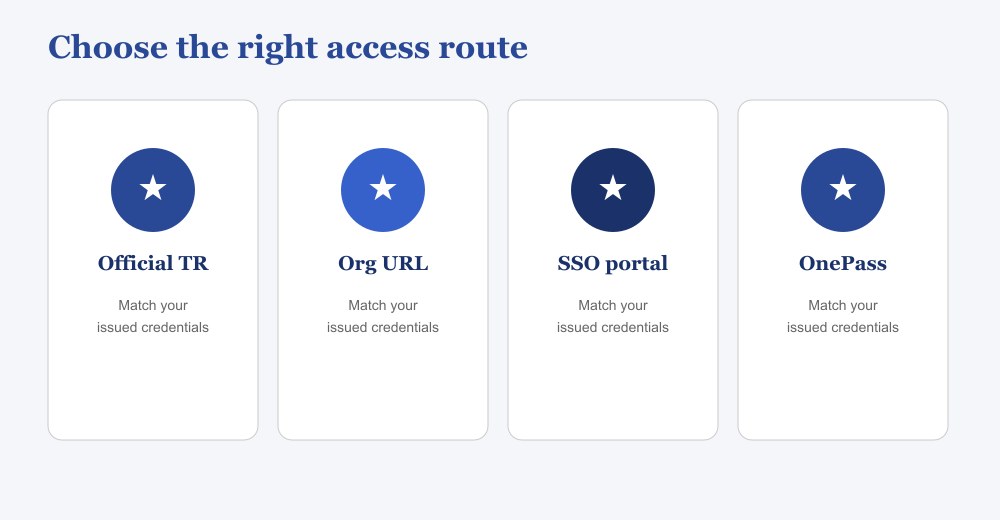
Westlaw access routes and when to use them
Official Thomson Reuters login
Best for: Main approved path for your Westlaw account type
Use: Official TR sign-in matched to your licensed version
Search results that don’t match issued credentials
Organization-provided URL
Best for: Firms, corporate legal, government, courts, schools
Use: Dedicated URL from employer, school, library, or admin
Using the public landing page instead of your assigned route
Single sign-on / custom portal
Best for: SSO, custom portals, or federated access
Use: Company or institution portal and network sign-in
Starting from the general public page
Institution-managed authentication
Best for: School- or library-controlled access
Use: Institution method plus onboarding instructions
Skipping the onboarding email that names the approved method
Account-specific credentials
Best for: Email/password, OnePass, client ID, or org details
Use: Exactly the credentials your admin issued
Expired passwords, permission changes, browser conflicts
Westlaw access checklist
- Start from an official Thomson Reuters or institution-provided Westlaw link.
- Prefer your organization’s dedicated login URL over public sign-in pages.
- Confirm account type: Westlaw, Westlaw Edge, SSO, OnePass, or network credentials.
- Keep onboarding emails, client ID, and reset instructions handy.
- If access fails, check password expiry, permissions, browser issues, then authentication changes.
Westlaw Edge & Advantage: quick fixes when sign-in fails
When a Westlaw login stalls, a password-reset email never arrives, or a saved session stops recognizing your username, research slows at the wrong moment. Most Edge or legacy Advantage failures trace back to expired credentials, browser conflict, firm network settings, or the wrong Thomson Reuters access point.
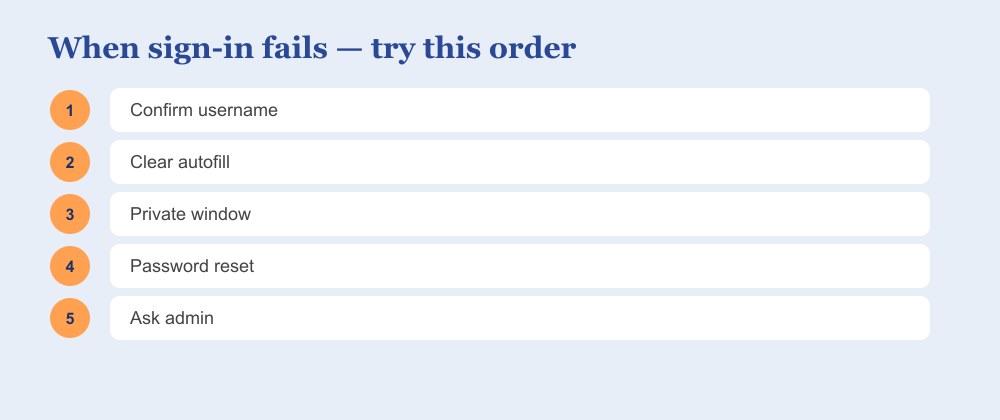
Confirm the username exactly. Match what your organization issued—especially after SSO migrations or product moves between Westlaw Edge and older Advantage workflows.
Clear autofill and sign in manually. Browsers often paste an outdated password. Remove the saved credential and type it once by hand.
Retry in a private window. Cached cookies commonly cause sign-in loops or a bounce back to the home screen without opening your account.
Use password reset / recovery. If the account itself is stuck, reset first—then escalate only if the reset email never arrives or still fails.
Ask library, KM, or IT. They can confirm whether your license is active, permissions changed, or Westlaw Edge has a temporary service issue.
In enterprise environments, the break is often the handoff from your firm’s identity provider — not the Westlaw page itself. Logging out fully, closing research tabs (including Lexis sessions), and starting fresh often clears that conflict. Knowing this short list gets you back to search, KeyCite, and drafting without losing a morning to preventable friction.
Frequently asked questions
Answers are general information only — not legal advice for a specific situation.
What is the official Westlaw login path?
Use the sign-in link provided by Thomson Reuters, your employer, court, firm, or school. The correct path depends on your subscription—such as Westlaw or Westlaw Edge—and may require a custom portal or single sign-on rather than the public homepage.
Why is my Westlaw login not working?
Common causes include an expired password, browser autofill errors, cached cookies, changed permissions, or using the wrong login page. Try signing in manually, opening a private window, and confirming that your organization has not changed its authentication process.
How do I fix Westlaw Edge or Westlaw Advantage sign-in issues?
Start with password reset and account recovery. Then clear saved credentials, log out of other research platforms, and retry in a fresh browser session. If access still fails, contact your library, IT team, or administrator to verify your license and approved login route.